First, we open the official website of Unisat wallet: https://unisat.io/inscribe
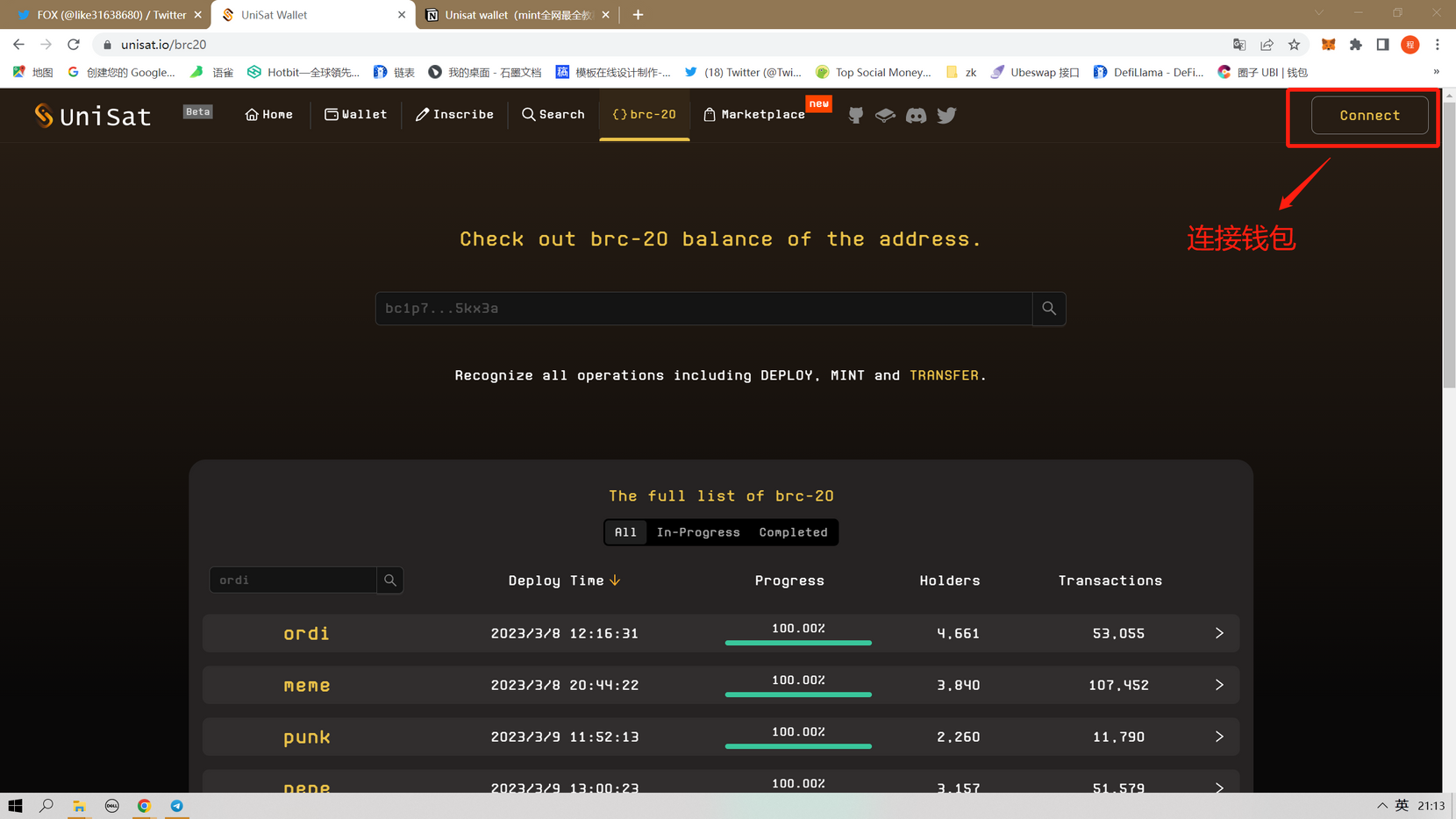
Then we see the official website page here, click Connect to connect to the Unisat wallet.
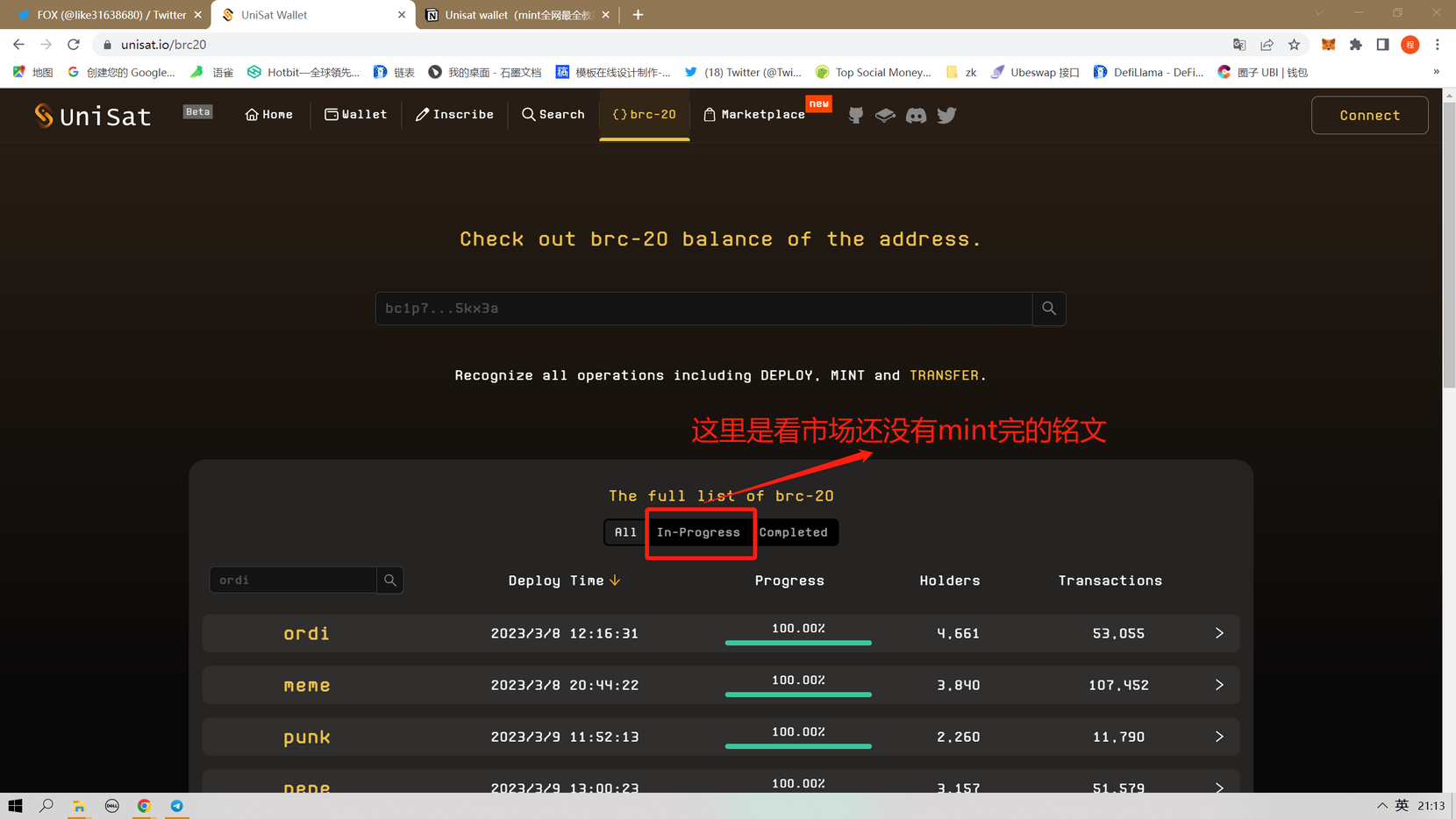
Then see brc-20 here, In-Progress here, you can see the inscriptions that have not been completed by mint in the market, and All is (already completed by mint).
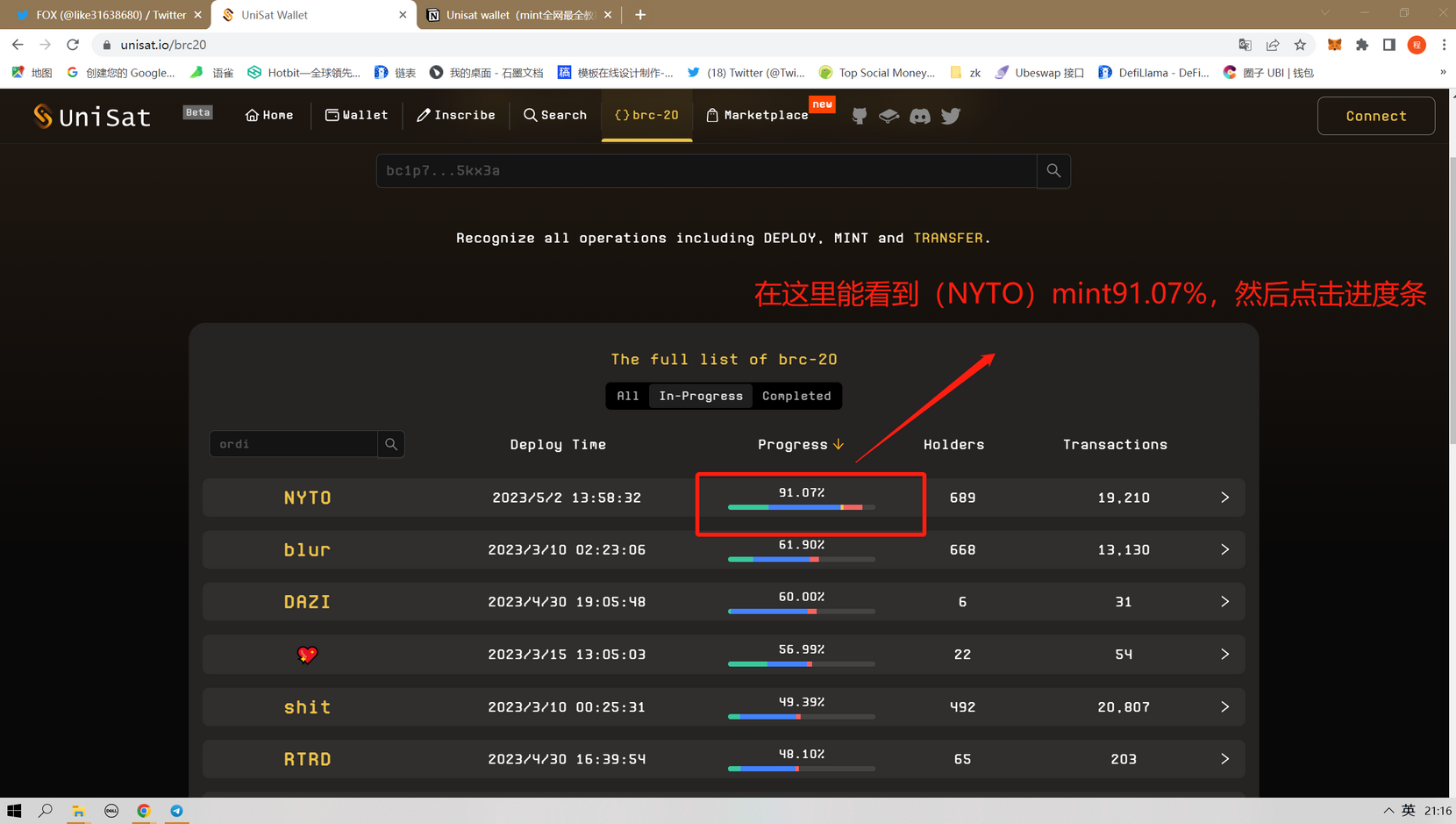
Here we see this NYTO, the mint has been 91.07% as of the time of writing, and then we click on the progress bar (this is just a tutorial and does not constitute a value investment).
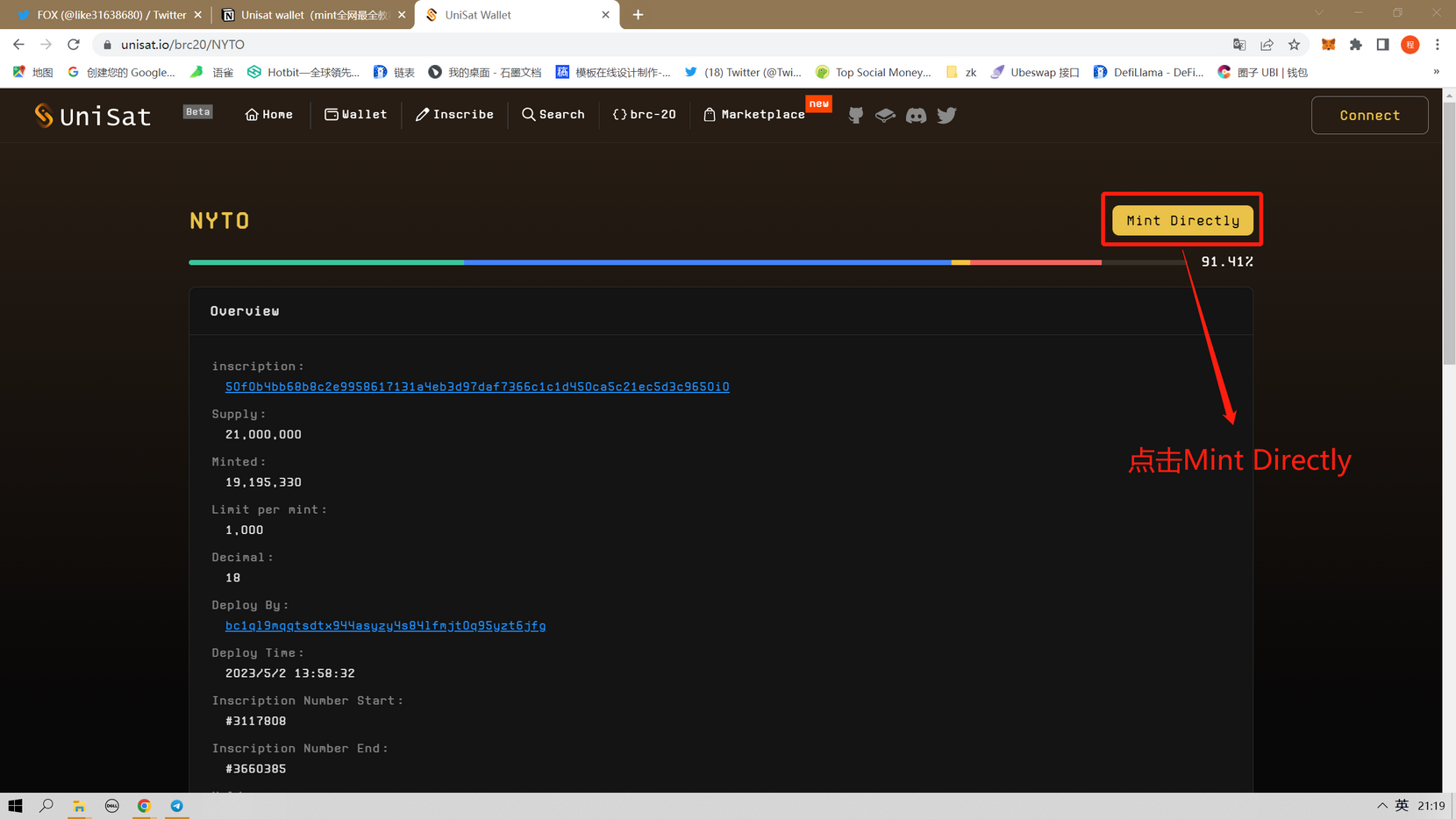
Here we click on Mint Directly.
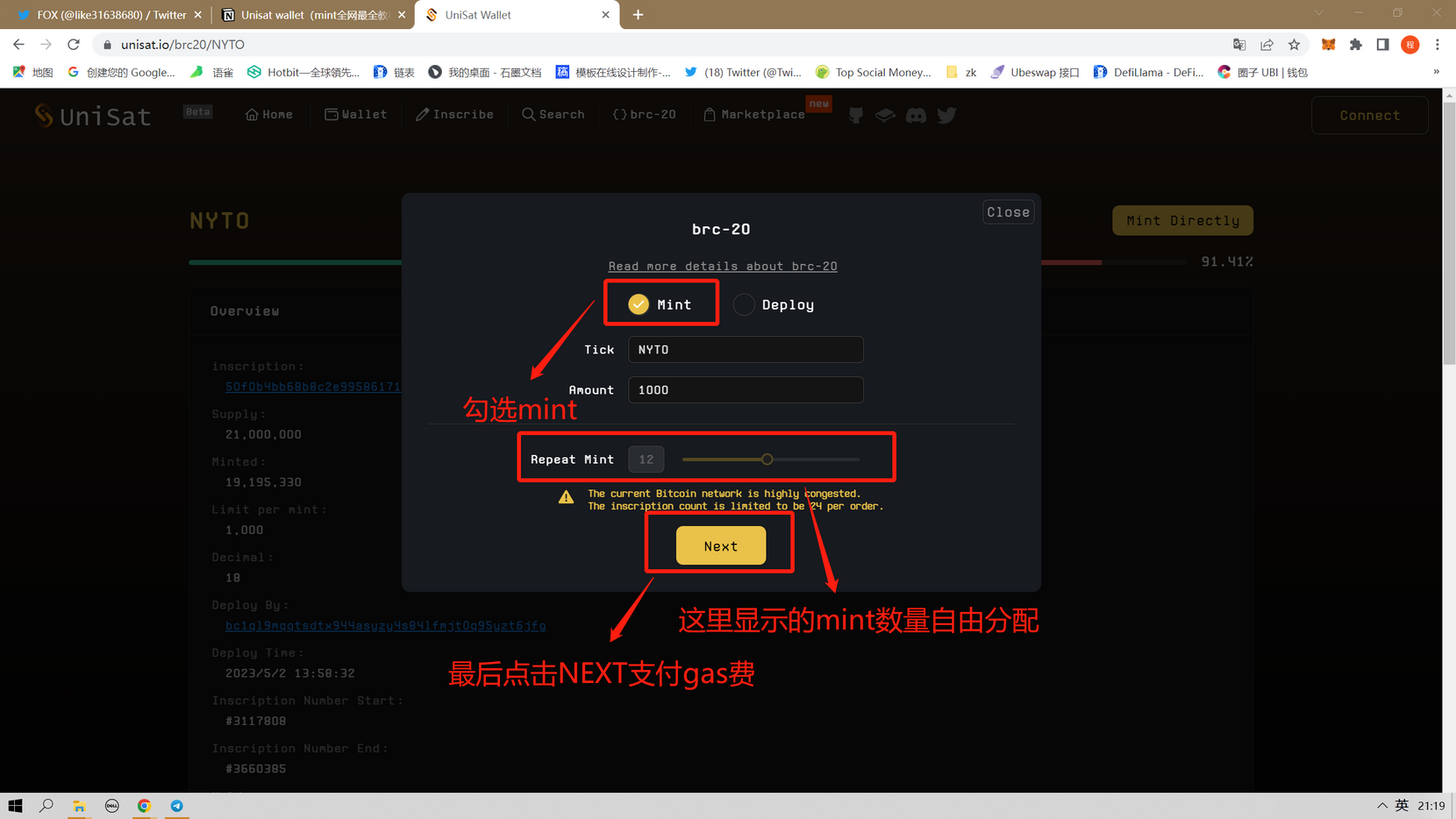
Here we need to check MINT, then Reoeat Mint below is to select the amount of mint, and finally click NEXT to pay the gas fee.
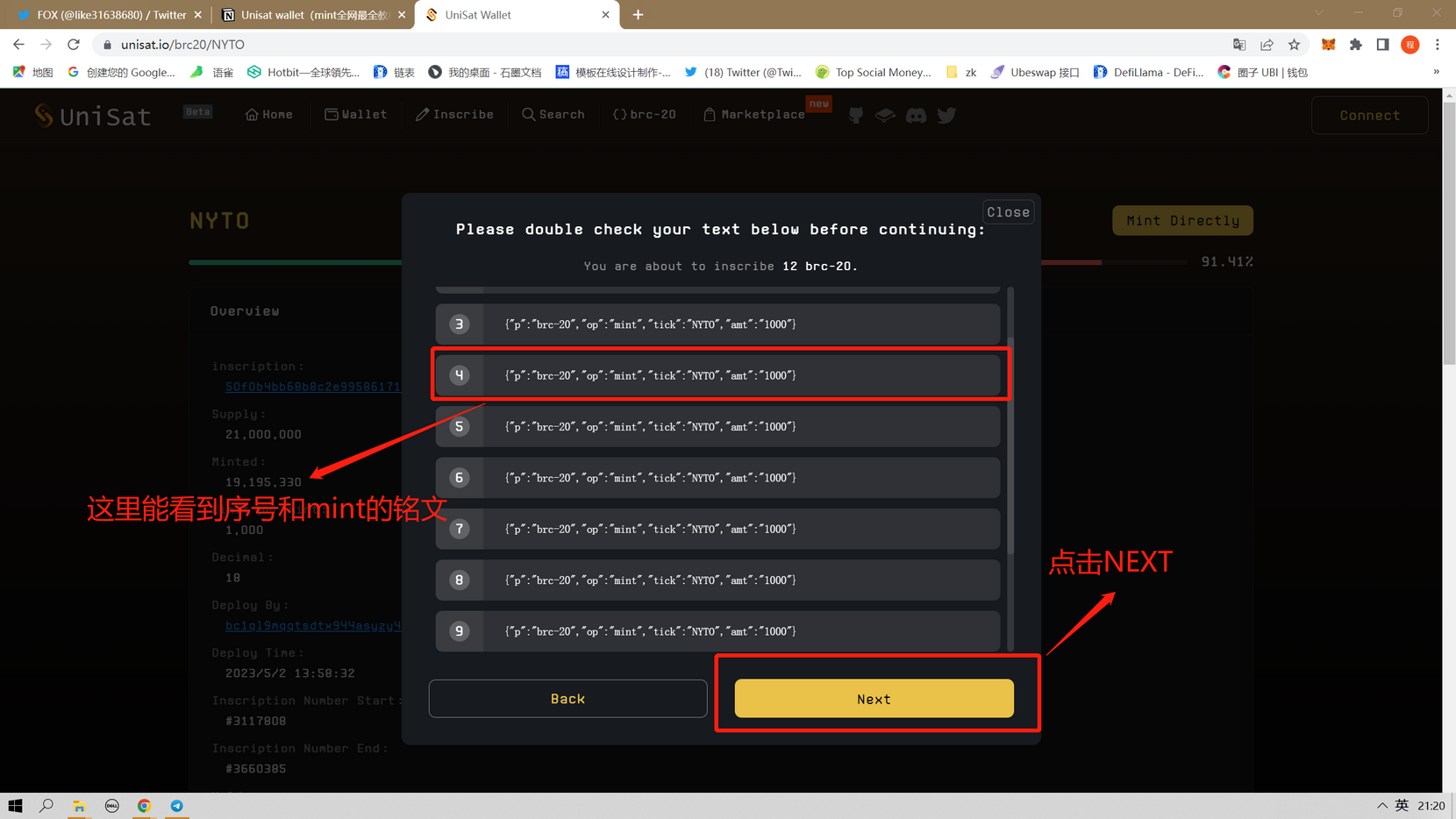
Here you can see the name and quantity of the inscription, and finally click NEXT.
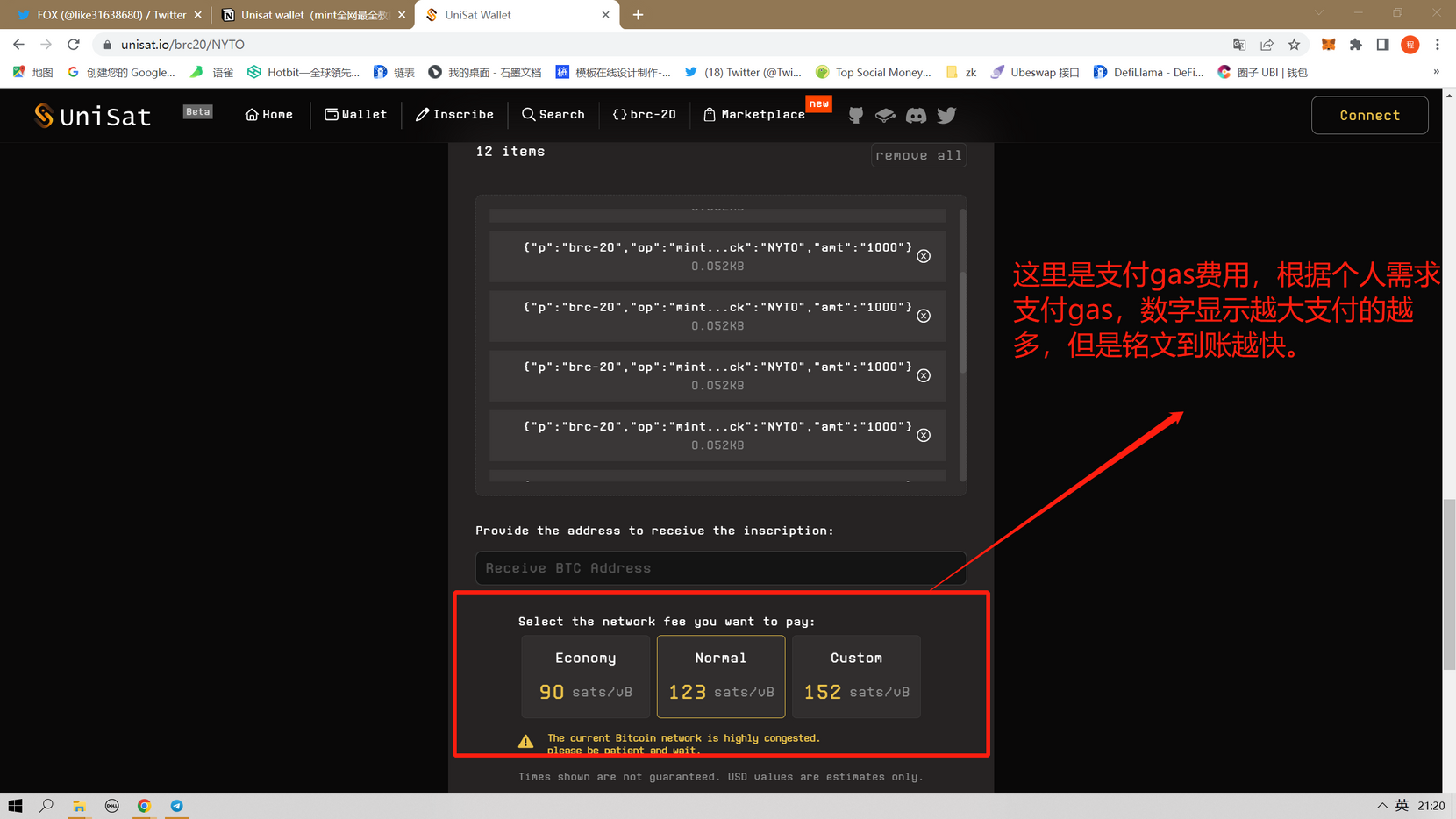
There are three options in this place, 90, 123, 152, you can understand it as the level of the Gas fee, 152 is the fastest but pays the most gas, and the picture is the fastest to arrive. 123 Medium, and so on.
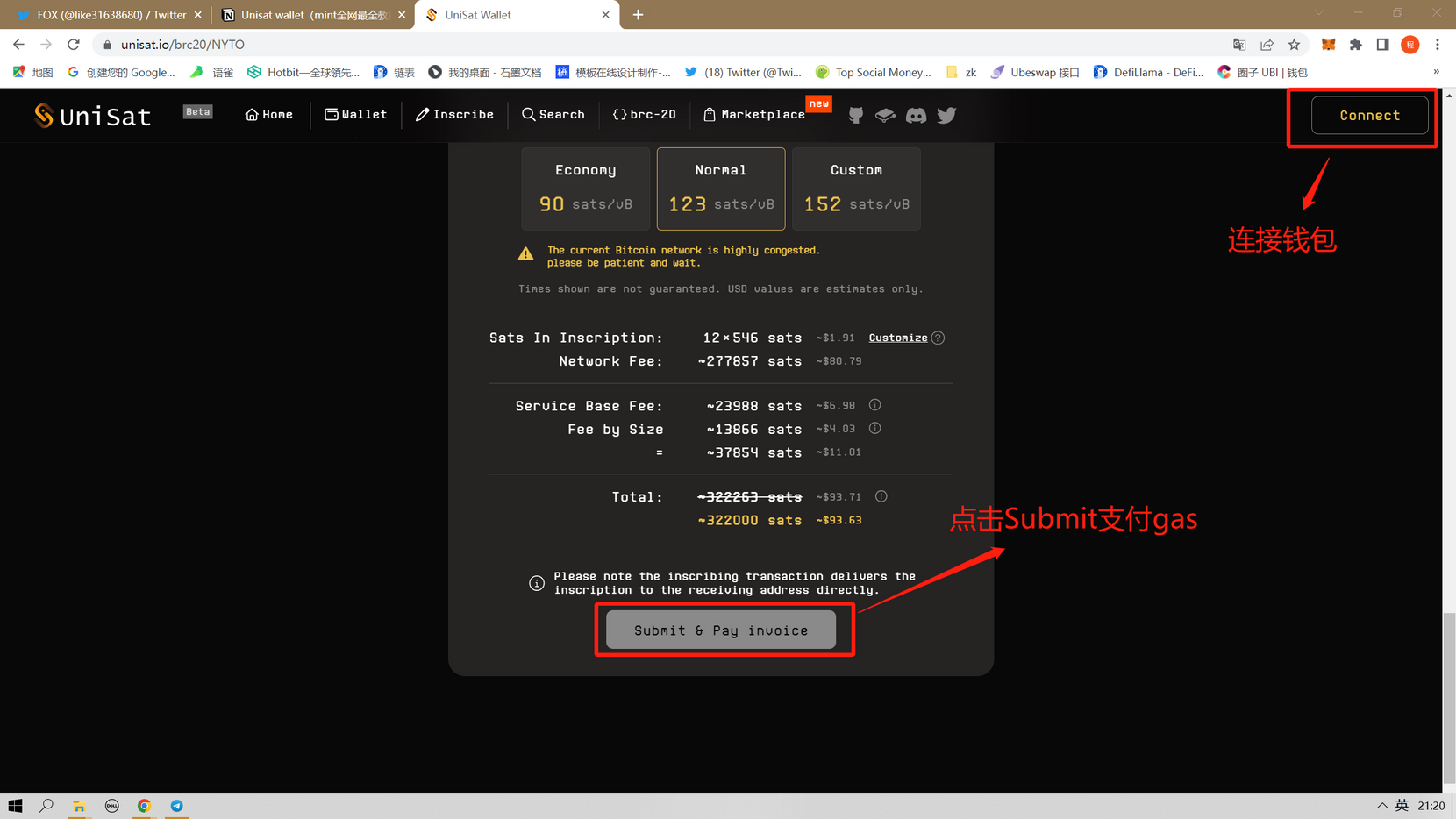
After the wallet is connected to this place, click Submit to pay for the gas. The editor does not connect the wallet here, so there is no yellow light.
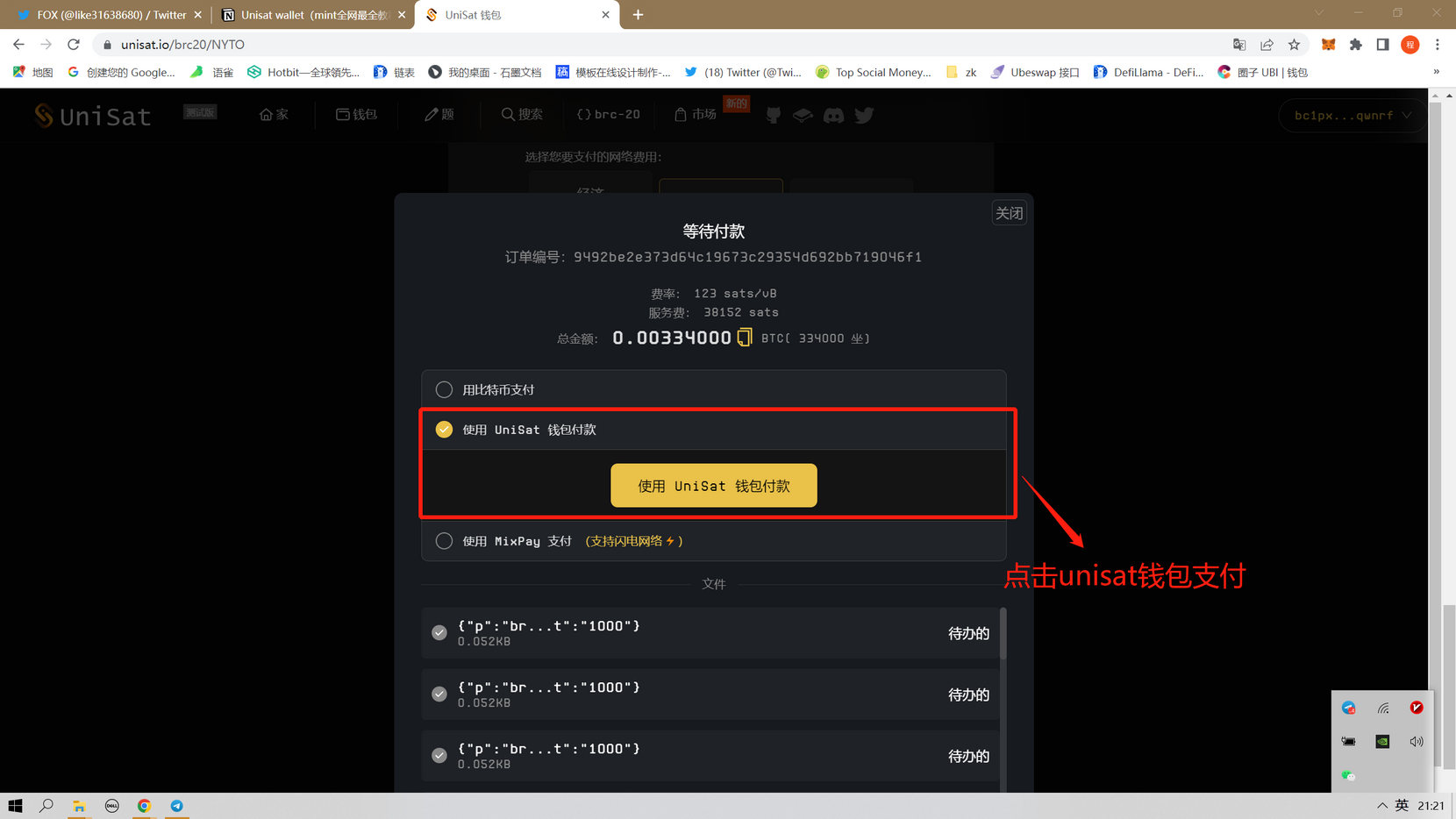
Click to pay with unisat wallet.
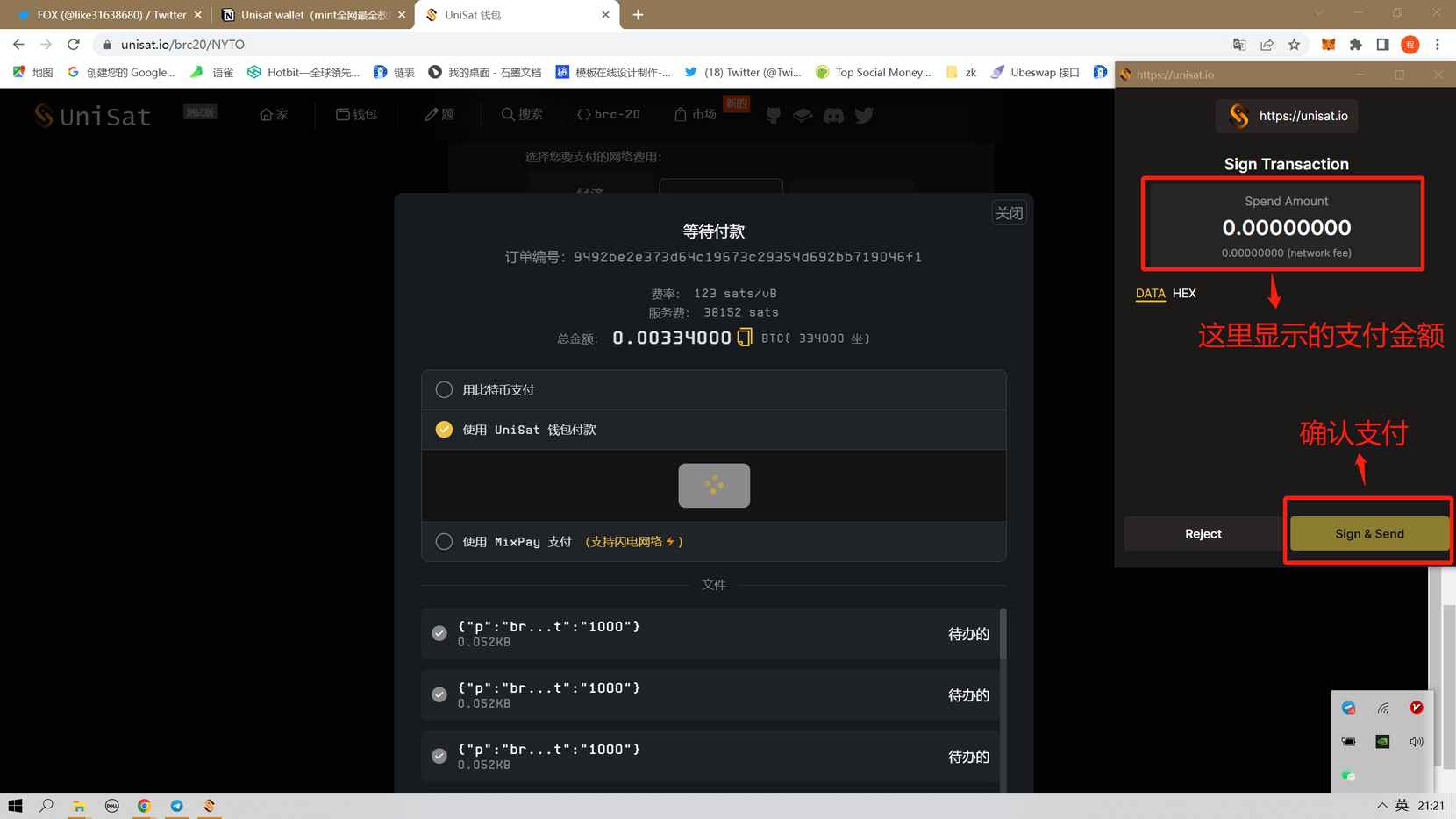
The amount displayed in the wallet is not displayed here because the network is too slow, but generally when you go to mint, it will display how much BTC you paid.
Then click Confirm Payment.
At this point, the whole process of Unisat wallet (MINT) is completed. Market investment is risky, so invest cautiously.
Does not constitute value investing.