This article is machine translated
Show original
This week, Master Zhang's painstaking work has arrived!
CLI helps ordinary people improve efficiency without writing code in ten thousand ways!
- How to use Gemini CLI with low barriers in two steps
- Batch modify system settings
- Edit and find documents, generate PPT
- Clip videos, edit images, download videos
- Interconversion of different document formats, and so on
Below are detailed tutorials and cases 🧵
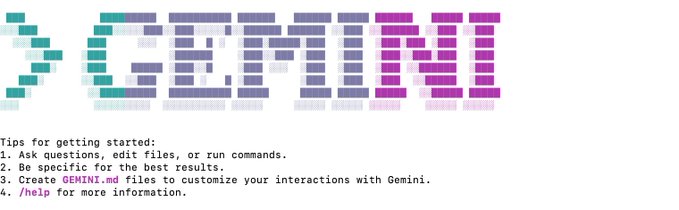
Let me briefly explain the difference between this type of product and Cursor.
First of all, they have no interface, and all operations are displayed in the terminal in the form of command lines.
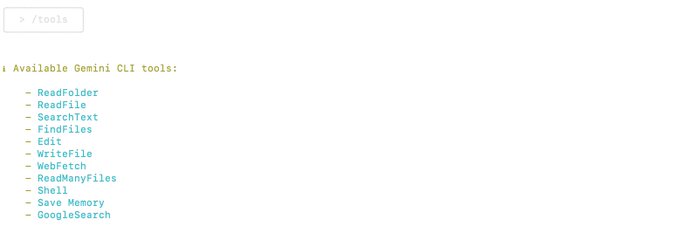
Then, Agents can automatically execute tasks to process local files, and have many built-in tools, such as Google search, reading files, finding files, searching text, writing files, saving memories, etc. You can enter /tools and press Enter to list the currently supported tools.
I can't use it if I don't know how to program
Many friends ask if the command line is very complicated, and if I don't know how to program, it will be difficult to use.
In fact, it is not. If your network environment is normal and you can log in to Gemini CLI normally, there is no essential difference from using Cursor.
Because the core interaction is still mainly the prompt word input box, and you don't need to write the command line, Gemini can write it.

How to Use Gemini CLI
The first step is to enter our launch pad and search for the word "terminal", then open it after finding it.
At this point, you will see a blank interface with some incomprehensible text, but do not worry.
Here I suggest that after deciding on the task, create a new folder and throw the required task materials into it, then hold the option key and right-click to select "Copy XXXX Folder as Path Name", at which point you will quickly obtain the folder's path.
Then return to the terminal window, enter cd + space + the path you just copied, and next all your terminal operations will only affect the contents of this folder, so do not worry about damaging your computer.



Find and generate local documents
First, Gemini CLI itself supports Google search. You can ask it to search for specified content and write documents for you, or you can edit your own documents.
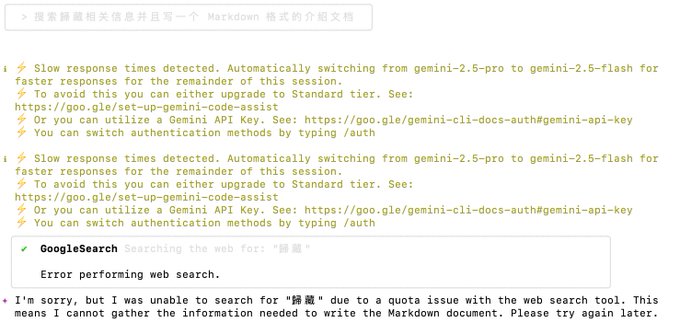
Of course, search tools often have quotas, which is a bit disgusting. For example, ask it to search for hidden information and compile an introduction document.
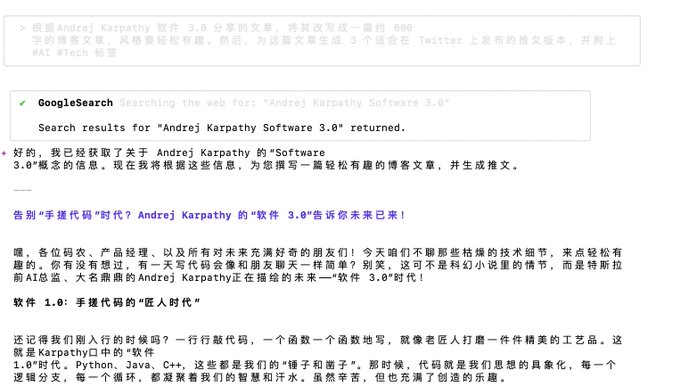
You can also ask him to analyze the articles you saved locally and rewrite them to generate new articles.
For example, I asked him to rewrite Karpathy's Software 3.0 article into a blog post suitable for publishing, and generate the corresponding Twitter release version. It can also analyze and process documents such as meeting summaries.
Prompt words:
Read the meeting minutes meeting_notes.txt that I just recorded and transcribed, summarize the key decision points, and identify all the to-do items assigned to me, and add them to my todo .md file in the form of a task list.
Based on the article shared by Andrej Karpathy Software 3.0, rewrite it into a blog post of about 800 words in a light-hearted and interesting style. Then, generate 3 tweet versions of this article suitable for posting on Twitter, and attach the tag
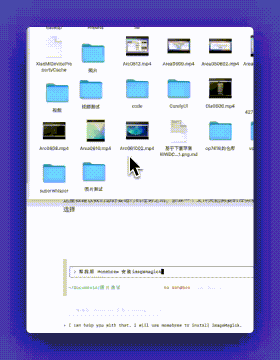
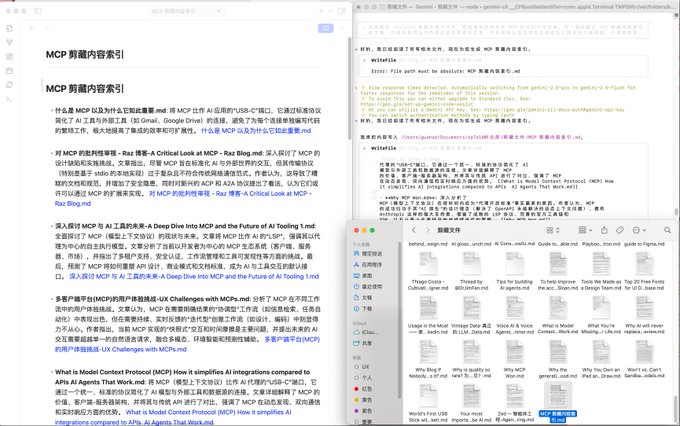
Find your Obsidian folder, open it, and start Gemini CLI, then let Gemini CLI find relevant content.
Let it search all my clippings, find MCP-related articles, and generate a "MCP Clipping Content Index" document with backlinks for me.
Each unordered list has the file title and the article summary, and finally a link to the article.
Advanced usage of Gemini CLI
The above are some basic usages, and you may have seen some of them recently.
But I found that combined with some local software, Gemini CLI can achieve more advanced processing of various files, such as video to gif, youtube video download, watermarking, document format conversion, etc.
These are very powerful, and most of our daily content creation is very necessary.
Generate PPT for Local Documents
Previously, we had documents, but during presentations, you can't always show people a Markdown document. Can we generate a PPT?
Yes, my friend, absolutely! For example, I directly converted the MCP index document content into a PPT.
This relies on a project called Slidev, which can transform content into a PPT with rich styles using a format similar to Markdown documents.
You don't need to know the details of this project. Just use the prompt I provide below to generate the file, then copy the file to this page (stackblitz.com/github/slidevjs...…) for preview.
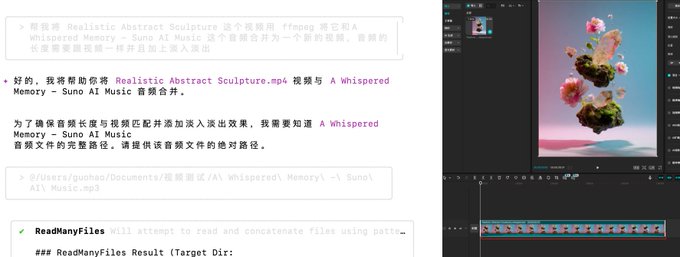
Then I want to add music to the video. You just need to tell him the name of the video file and the music file. I even asked him to add fade-in and fade-out to the music.
He first got the length of the video, then started to operate, and then it was done. It was perfect and seamless. Fading in and out was also added. You can see the spectrum previewed in the Jianying interface.
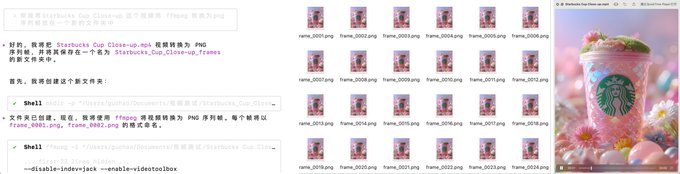
We often need to convert a video into a sequence of frames, and then process one of the frames, or process all the frames. In the past, you had to look for such tools everywhere, and the conversion effect was not necessarily good.
Gemini CLI can do it in one sentence, and the processing is fast and good, and it saves the time of uploading and downloading with web tools.
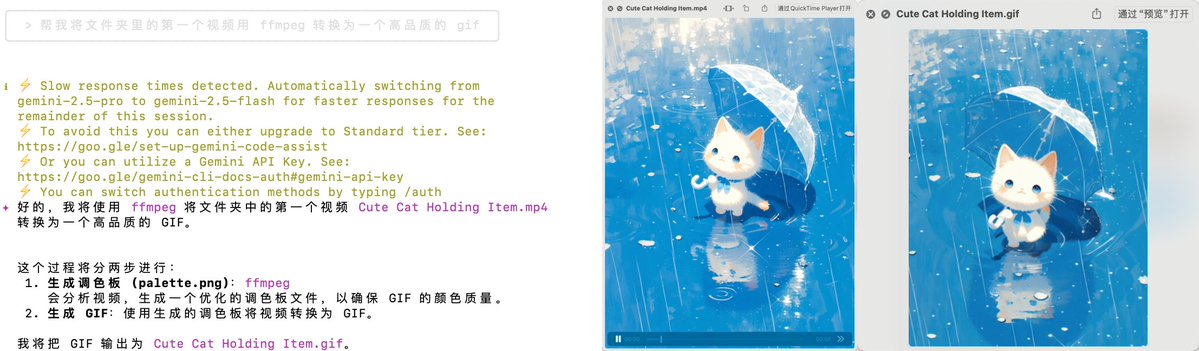
Another common task is to convert videos to GIFs, especially since the official account has a limit of 10 videos, so it is often necessary to convert them to GIFs for publication.
Gemini captured the keyword of high quality and created a color palette to ensure color restoration, and the final processing was perfect.
Download videos with yt-dlp
The yt-dlp project can be used with ffmpeg to download videos from almost all video platforms you can think of.
We can still let Gemini CLI help us install the yt-dlp project.
Then just provide the video link and it will help you download it. You can even batch download multiple videos or download the cover and video together.
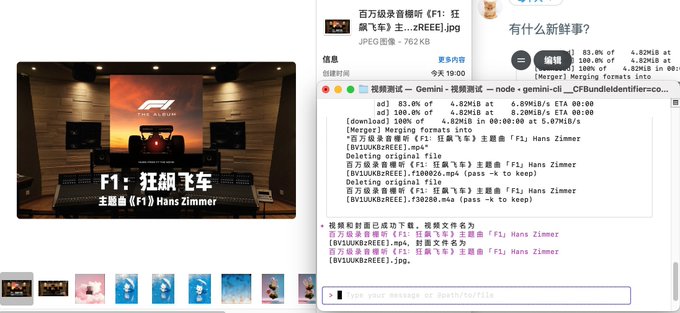
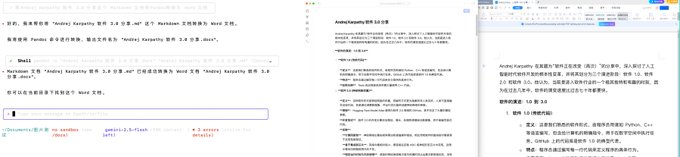
Document format conversion is also a common requirement, as many companies still use Word for work documents, and often when I send a .md file, they don't know what to do.
First, let's have CLI help us install.
At this point, we can use the Pandoc project to convert between various document formats, and batch conversion is also possible.
As you can see, the conversion is very good, with basic Markdown formats also migrated, whether it's bold text or unordered and ordered lists.
The tutorial ends here.
By now, you should understand why I said there would be ten thousand use cases. You can use Gemini CLI to control these already very mature command-line projects, and basically find corresponding projects for all your needs.
It's not only MCP that can create Agents; these traditional tools will become more powerful with the support of LLM.

From Twitter
Disclaimer: The content above is only the author's opinion which does not represent any position of Followin, and is not intended as, and shall not be understood or construed as, investment advice from Followin.
Like
Add to Favorites
Comments
Share
Relevant content