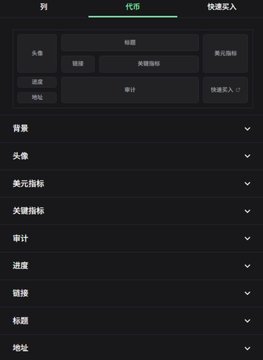
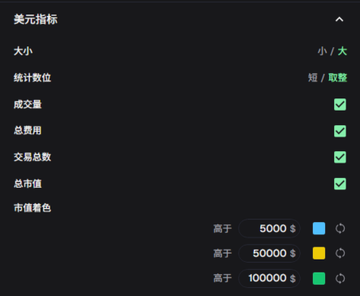
Due to recent market volatility and decreased public attention, the "Trench" section of Terminal (formerly Padre) actually hides immense customization potential. This section isn't just a simple drag-and-drop layout; more importantly, it allows users to deeply customize each sub-section with specific parameters, creating a monitoring interface perfectly suited to their individual trading habits. 1. After opening the customization interface, you'll see columns, tokens, quick buys, etc. Note that this isn't just about dragging and dropping; the real core lies in the detailed parameter settings after clicking on each section. 2. Core Data Section Configuration Background Section: Adjust the background and protocol colors. This is fairly straightforward. Avatar Section: 1/ Avatar Display Format: Round/Square; 2/ Reuse Warning: Displayed in the upper right corner of the avatar. US Dollar Index Section: 1/ Size: This mainly adjusts the size of the trading volume and market capitalization data display. When scanning the chain using a dual-screen large screen, some data may appear too small. 2/ Statistical Place Values: This mainly determines whether to round the market capitalization to the nearest decimal place. 3/ Trading Volume, Total Fees, Total Transactions, Total Market Capitalization: Each of these has corresponding checkboxes; select the one you want. 4/ Market Capitalization Coloring: You can customize the color preferences for different market capitalization levels. The image shows my settings based on my preferences; you can adjust them according to your own. Key Indicators: Total Holders/Professional Holders/Developer-Bound/Created by Developer/New Wallet Purchases/Recent Visitors/Total Market Capitalization in Statistics. Choose these parameters according to your preferences. There are also other sections, such as the progress section, which can be set to wrap around or display bars, whether to show the historical highest progress, and the title section color settings, such as allowing copying the name when clicking the code. As for the fast trading section, I think the post-purchase behavior settings are worth mentioning. I usually like to view the market candlestick chart after purchasing; you can also customize these settings according to your preferences. If you'd like to build your own custom configuration, please click the link to experience it now: http:/trade.padre.gg/rk/joshua
This article is machine translated
Show original

Joshua.D
@yiyun_dan1
12-19
复盘了一下,发现很多亏损其实是工具不行造成的(卡顿、延迟、滑点)。最近把主力工具换成 Terminal 后,体验确实顺手很多。
几个比较硬核的理由:
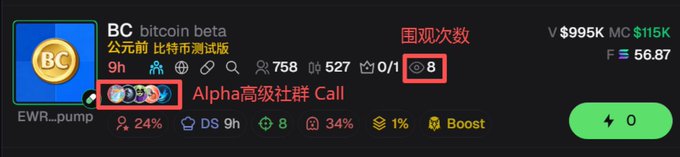
1/ 自带情报: 能直接看到币种的实时围观热度,还能同步各大 Alpha 群的喊单信号,信息差直接抹平。
2/ 官方通道: http://Pump.fun


From Twitter
Disclaimer: The content above is only the author's opinion which does not represent any position of Followin, and is not intended as, and shall not be understood or construed as, investment advice from Followin.
Like
Add to Favorites
Comments
Share
Relevant content