Background
In the previous Web3 security entry-level guide to avoiding pitfalls, we analyzed the pig-butchering scam. This time, we will focus on clipboard security.
In many cryptocurrency asset theft incidents, victims are often most confused by: "I didn't even transmit my private key over the network, how was it stolen?" In fact, the leakage of private keys/seed phrases does not necessarily occur through cloud or network transmission; it can also happen during seemingly "local and secure" operations. For example, have you ever filled in private keys/seed phrases by copying and pasting? Have you ever stored them in notes or screenshots? These common operations are also entry points that hackers target.
This article will revolve around clipboard security, helping you understand its principles, attack methods, and prevention recommendations we've summarized in practice, to help users build a more solid asset protection awareness.

Why Clipboard Exists as a Risk
The clipboard is a temporary storage space provided by the operating system for local applications to share, mainly used to store temporary data (such as text, images, file paths, etc.) to facilitate copying and pasting content between different applications. For example, when you copy a wallet address, the operating system stores that address in the clipboard until it is overwritten by new content or cleared.
- Plain Text Storage: Most operating systems (such as Windows, macOS, Linux) do not encrypt clipboard data by default, but store it in plain text in memory.
- System APIs Provide Access: Most operating systems provide clipboard-related APIs that allow applications to access the clipboard. This means that if an application (such as a text editor, browser extension, input method, screenshot tool, or even malware) has the corresponding permissions, it can silently read or even tamper with data in the background.
Moreover, since clipboard content is not automatically cleared by default, it can remain accessible for a relatively long time. If users copy sensitive information but do not promptly overwrite or clear it, malware or third-party applications have the opportunity to read this content.
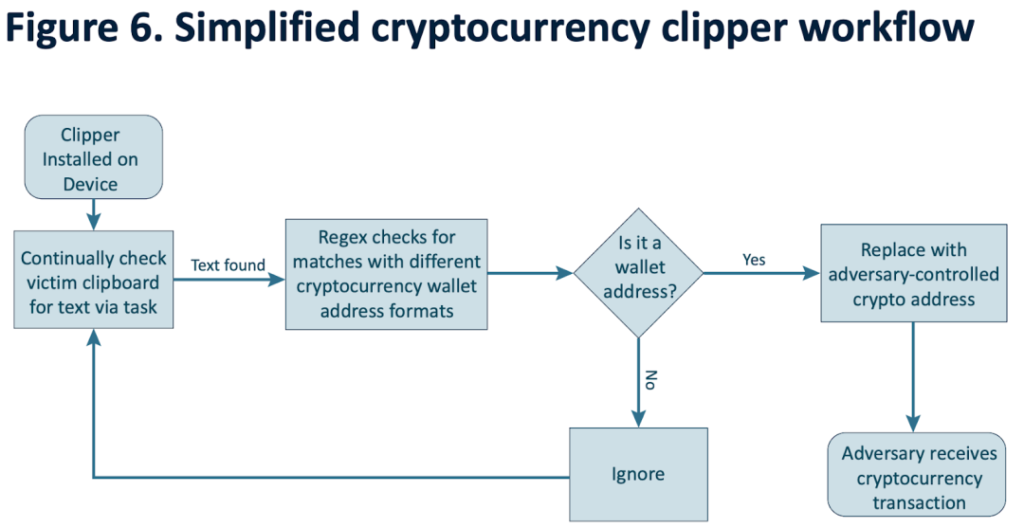
Some clipboard malware is specifically designed to tamper with addresses. A fraud report on transnational organized crime in Southeast Asia released by the United Nations Office on Drugs and Crime in 2024 mentioned that a commonly used malware by Southeast Asian criminal groups is a clipper. This type of software monitors the clipboard of infected systems, waiting for an opportunity to replace addresses in cryptocurrency transactions. Once the victim unknowingly makes a transaction, funds are transferred to the attacker's address. Since cryptocurrency wallet addresses are usually long, users are less likely to notice changes in the recipient's address.
By this point, everyone should realize that to prevent clipboard attacks, the most fundamental method is to avoid copying sensitive information and install professional antivirus software to prevent malware intrusion.

The main purpose of clearing the clipboard is to shorten the exposure time of sensitive information and reduce the risk of being read by malware or other applications. If you accidentally copy sensitive information, clearing the clipboard promptly can lower the possibility of leakage. A simple method is to immediately copy a large chunk of unrelated content to "wash away" the previously copied sensitive information, which can somewhat reduce the probability of being read.
However, if your device is already infected with malware that steals or tampers with clipboard content, manually clearing the clipboard will have limited effect. This is because such malicious programs can monitor and read data in real-time, and manual clearing is unlikely to keep up with their operations. Therefore, the best approach is still to avoid copying sensitive information from the source and ensure device security. If you suspect your device is infected, it is recommended to transfer assets to a new wallet as soon as possible to prevent further losses.
In addition to the clipboard, sensitive information may also be leaked through the following methods, which users should be cautious about:
- Photo Albums, Cloud Storage, Input Methods: Avoid exposing private keys/seed phrases online, including but not limited to photo albums, cloud storage, WeChat collections, mobile notes, etc. Avoid entering sensitive information in input methods. It is recommended to use the system's built-in input method, disable the input method's "cloud sync" function, and try to avoid filling in private keys/seed phrases by copying and pasting.
- Malware Risks: Regularly use antivirus software to scan the system and eliminate potential malware.
- Browser Extension Permission Issues: Disable unnecessary browser extensions. If you are concerned about the permission risks of an extension, after installation, you can first not use it, check the extension ID, search for its local computer path, find the manifest.json file in the extension's root directory, and have AI analyze the permission risks of the file content. If you have isolation thinking, you can consider enabling a separate Chrome Profile for unfamiliar extensions to at least make malicious actions controllable.
- Transfer Address Tampering Risks: When performing cryptocurrency transfers or other operations, be sure to carefully verify the wallet address to avoid accidentally transferring funds due to clipboard tampering.
Clipboard Clearing Tutorial
Here are some simple methods to clear the clipboard on macOS, iOS, Android, and Windows for everyone to practice:
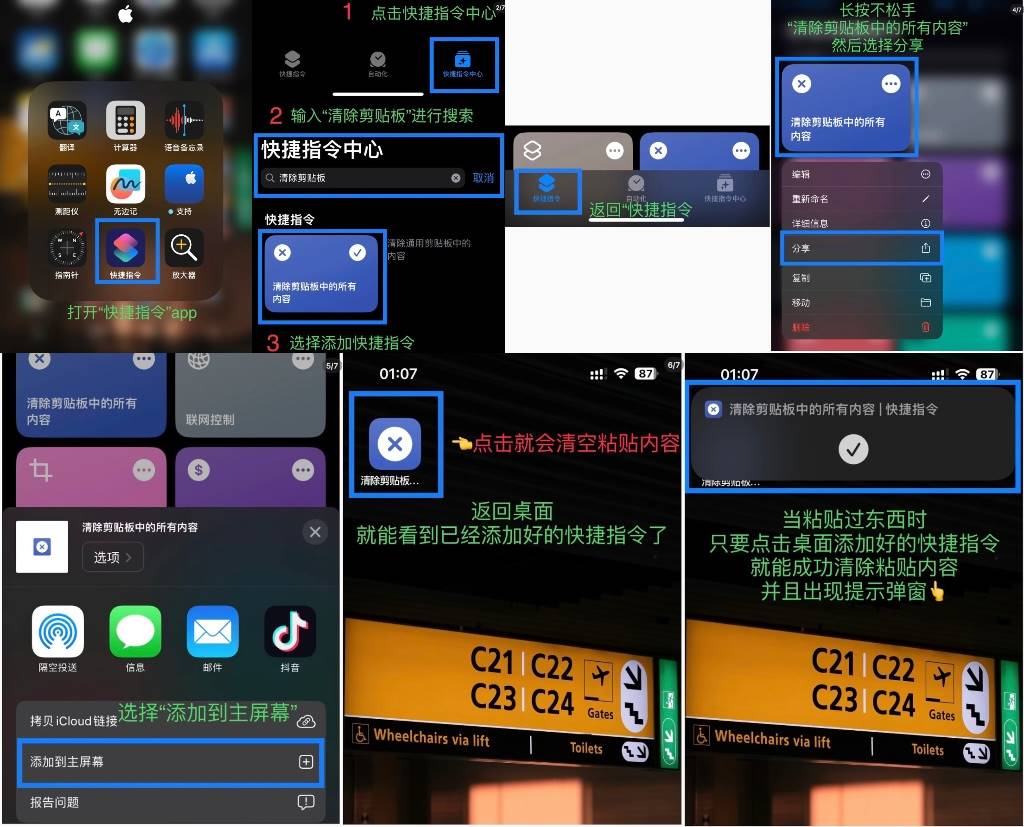
macOS only stores the current clipboard content and does not record history. Copying an unrelated content can overwrite sensitive history. iOS also only stores the current clipboard content. In addition to copying an unrelated content, users can create a shortcut to add a clipboard clearing command to the home screen, making it more convenient to clear.
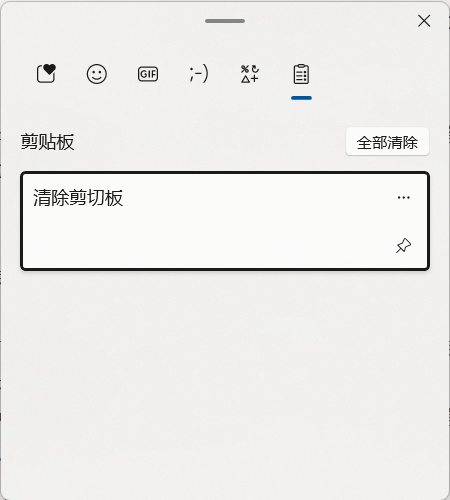
Windows 7 and earlier versions only store the current clipboard content with no history, which can be indirectly cleared by copying an unrelated content to overwrite the original content. Windows 10 / 11 (if "Clipboard History" is enabled): Press Win + V to view clipboard history, click the "Clear All" button in the top right corner to delete all history records.
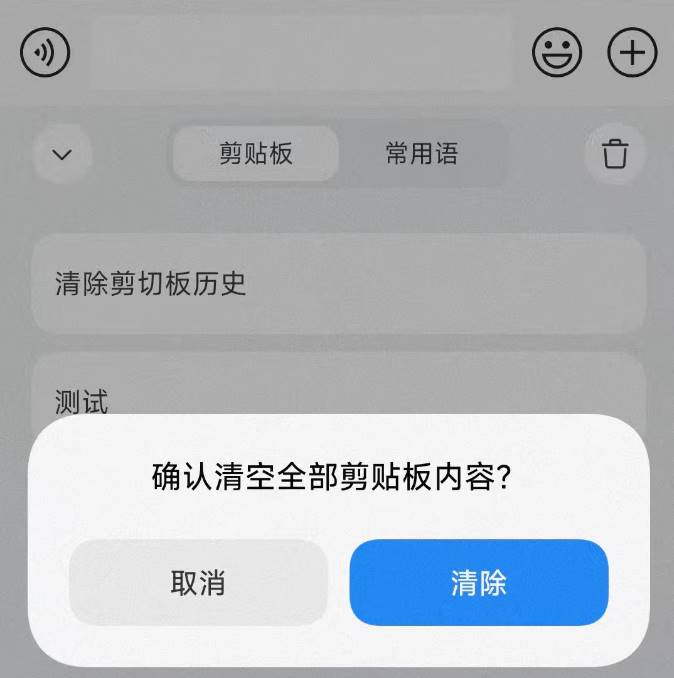
Android's clipboard history usually refers to the clipboard history recorded by the input method. Many Android devices provide clipboard history functionality in the input method, where users can enter the input method's clipboard management interface and manually clear unnecessary records.
In short, if the system does not store history, simply copy new content to overwrite. If the system has clipboard history (such as Windows 10 / 11, some Android devices), manually clear the history as described above.
Summary
Clipboard is a frequently overlooked and high-risk leakage channel. We hope this article helps users re-examine the security risks of copy and paste and recognize that "local operations do not equal absolute safety". Security is not just a technical issue, but also a behavioral habit issue. Only by maintaining vigilance in daily operations, improving security awareness, and implementing basic protective measures can one truly safeguard their assets.