Meteora is one of the most popular liquidity protocols in the Solana ecosystem, and DAMM V2 (Dynamic Automated Market Maker V2) is its latest generation dynamic market maker pool, optimized for new coin issuance and LPs (Liquidity Providers). It boasts core features such as dynamic fees, NFT staking, flexible staking, and stablecoin commissions, effectively preventing market manipulation, ensuring stable market openings, and significantly improving the LP experience.
Using the GTokenTool platform, you can create a DAMM V2 liquidity pool on the Solana mainnet in just a few minutes without writing complex code.
Preparations (must be done in advance)
- A computer or mobile phone (a computer is recommended for more stable operation).
- Solana wallet (Phantom wallet is recommended; please refer to the official installation tutorial)
- Keep at least 0.11 SOL in your wallet (for transaction fees and gas).
- You need to create a liquidity token (already minted and in your wallet).
Detailed creation steps
Step 1: Access the page and connect your wallet
Open the GTokenTool and go to the Create Liquidity page:
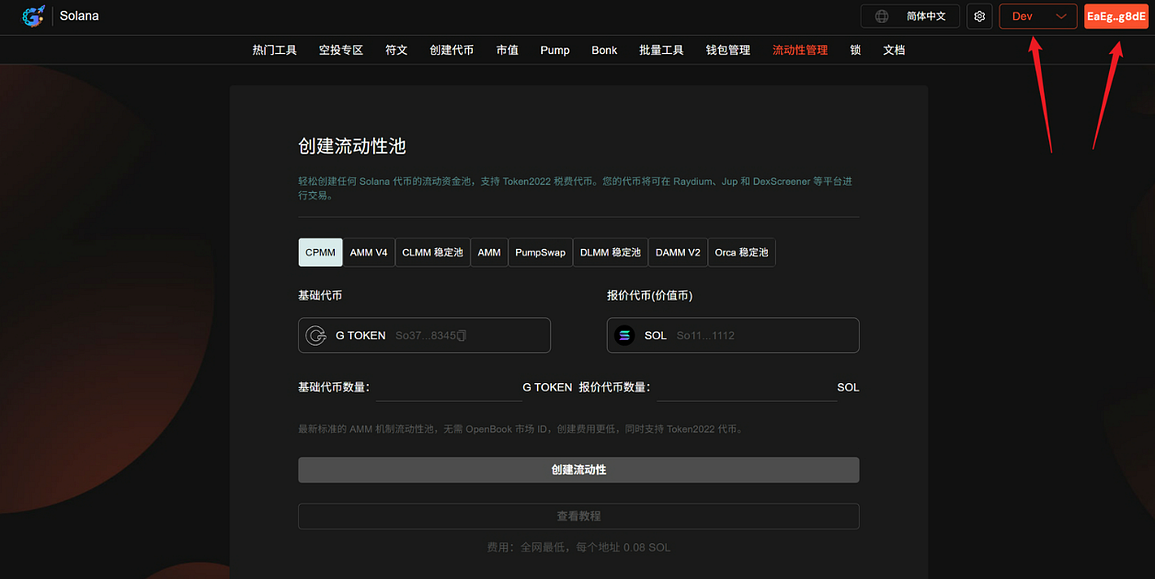
At https://sol.gtokentool.com/zh-CN/liquidityManagement/CreatePool , switch to the Main mainnet in the upper right corner (the test network can be used during the demo), click to connect to the Phantom wallet and authorize it.
Step 2: Select Pool Type
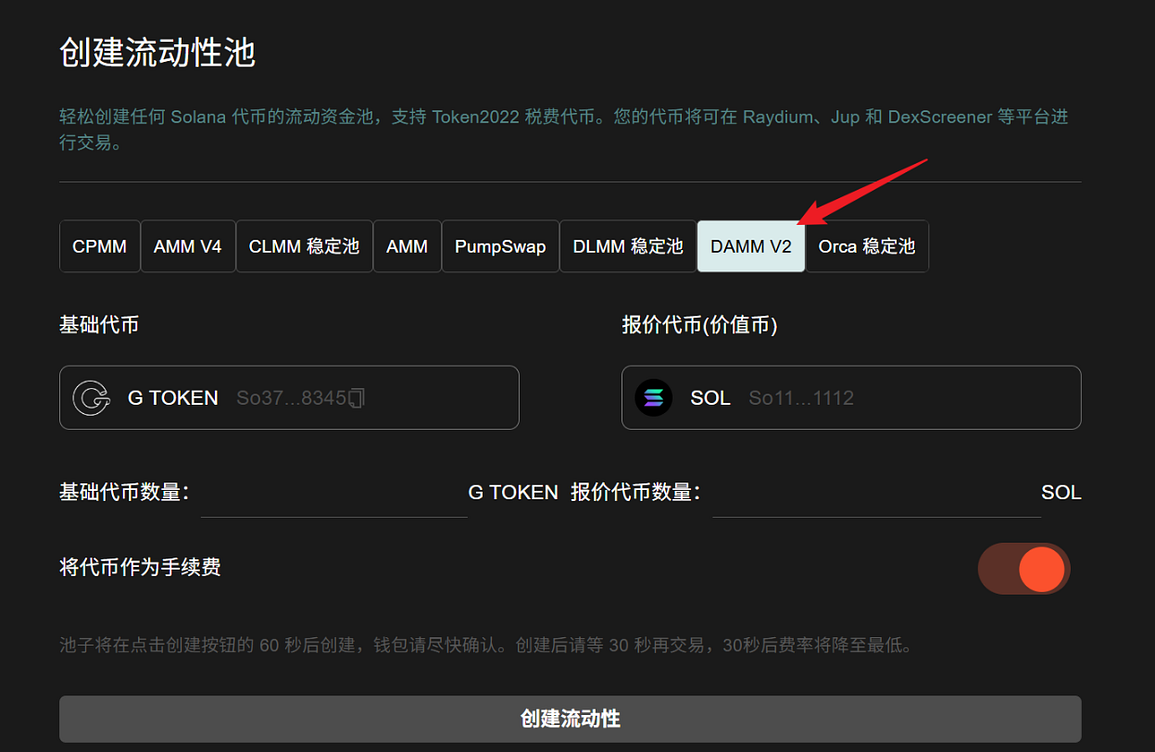
GTokenTool supports various pools: AMM, AMM V4, CPMM, CLMM, PumpSwap, DLMM, DAMM V2, Orca, etc.
Simply select the DAMM V2 pool.
Step 3: Set up trading pairs
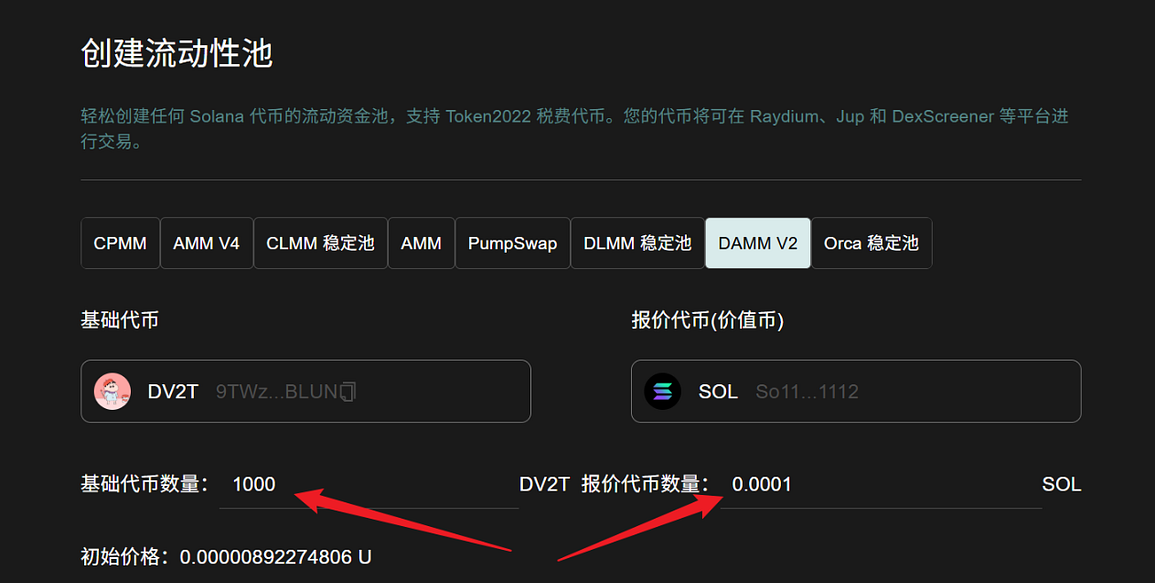
- Base token: Enter the token address you just created that does not yet have any value.
- Quoted Token: Select a token with market value, typically SOL, USDC, USDT, or USD1.

Step 4: Fill in the specific parameters
- Base token amount: Enter the amount of tokens you want to put into the pool (do not exceed your wallet's actual balance).
- Quoted token quantity: Enter the corresponding value of SOL/USDC, etc. (again, do not exceed the limit).
The system will automatically calculate the initial price, and you can preview the price curve in real time to see if it is reasonable.
Step 5: Optional Settings — Use tokens as transaction fees
If you wish to use your own issued tokens to pay part of the transaction fees, you can check the box here to enable this option (you can choose flexibly according to your project needs).
Step 6: Click to create liquidity
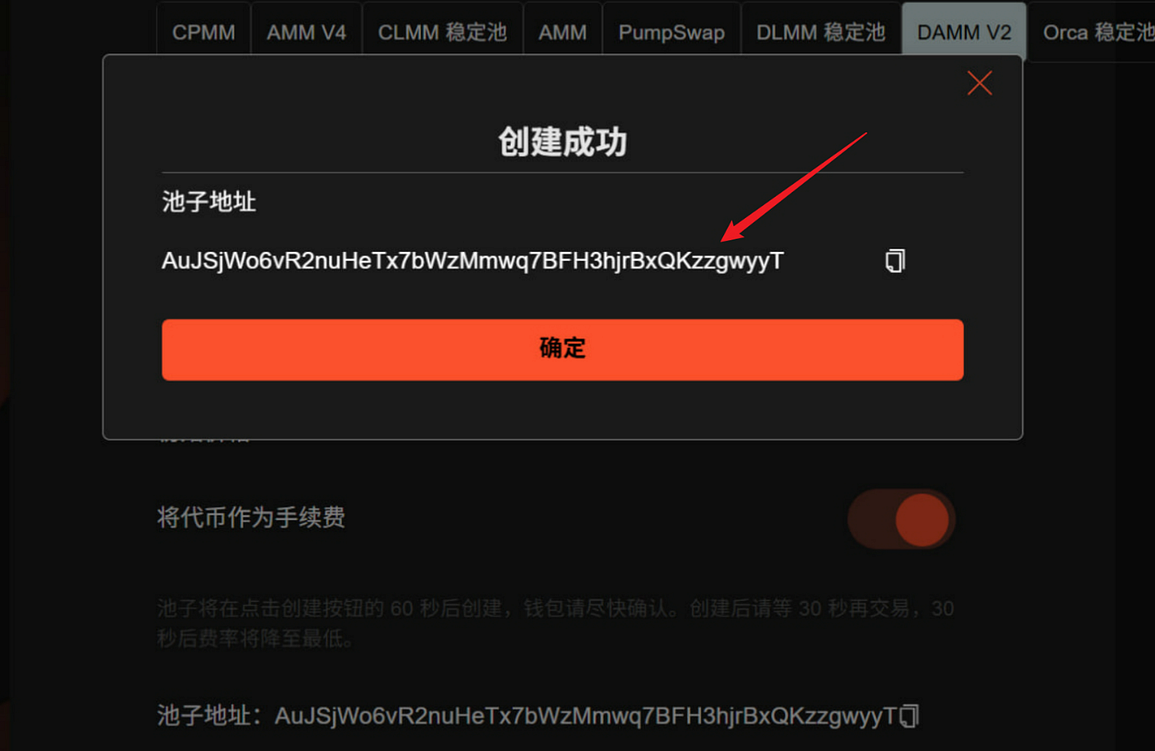
After confirming all parameters are correct, click the "Create Liquidity" button. Your wallet will display a confirmation window; please confirm the transaction within 60 seconds. After successful creation:
- The system will display the pool address (be sure to copy and save it).
- It is recommended to wait 30 seconds before making a transaction, at which time the fees will drop to the lowest level and the liquidity will be most stable.
Precautions and Tips
- Please ensure your wallet and network are stable during the creation process to avoid failure due to network interruption.
- Once the pool is created, DAMM V2's dynamic rate mechanism will automatically adjust according to market fluctuations, which is more conducive to preventing attacks and protecting LPs.
- After creation, it is recommended to immediately add more liquidity on the Meteora official interface or DEXs such as Raydium, or set up a lock-up period to enhance the project's reputation.
- If you encounter a Phantom Wallet confirmation issue, try refreshing the page or switching networks and trying again.
Summarize
Creating a Meteora DAMM V2 liquidity pool using GTokenTool takes only 2-3 minutes, making it far simpler and more efficient than manual deployment. Whether you're a new project or an individual developer, you can easily achieve "pool opening upon token issuance," allowing your tokens to quickly gain real trading depth.
Official documentation: https://docs.gtokentool.com/solana/liquidity-management/meteora-damm-v2-create-liquidity Open GTokenTool now and try creating your DAMM V2 pool with one click!